Global Policies
Global policies can be created independently of API Proxies from the Global Policies interfaces or from an API Proxy's Development Tab.
Features of Global Policies
- Independence: Global policies can be created and managed independently of API Proxies.
- Reusability: A global policy can be used by multiple API Proxies.
- Centralized Update: Updates made to a global policy affect all API Proxies using that policy.
- Interaction: When an API Proxy is deleted, global policies used by that API Proxy are not affected. However, any update made to a global policy affects all API Proxies using that policy.
Operations that can be performed with Global Policies:
AI Gateway Policies
The Global Policies interface lists and manages not only classic API proxy policies but also AI Gateway policies, centrally. Some policies can be used both on classic API proxies and in the AI flow, while others are specific to AI, MCP, and A2A Gateways. Five of the AI guardrail policies — personal-data masking, prompt protection, data-loss protection, off-topic protection, and retry-storm (loop) protection — can be attached to an AI Gateway, MCP Gateway, or A2A Gateway; the rest (for example token quota, retrieval-augmented context) stay AI-Gateway only — see Advanced Guardrails: MCP and A2A Gateways for the full breakdown. AI policies are not added to classic API Proxy Groups; they are applied to AI, MCP, and A2A Gateways.
This page is the surface for centrally managing and bulk-deploying AI policies. What each AI policy does and how it is configured is described in the AI Gateway section:
- Advanced Guardrails — the behavior of personal-data masking, prompt and data-loss protection, and the other security policies
- Access Control and Roles — who can manage and deploy AI policies
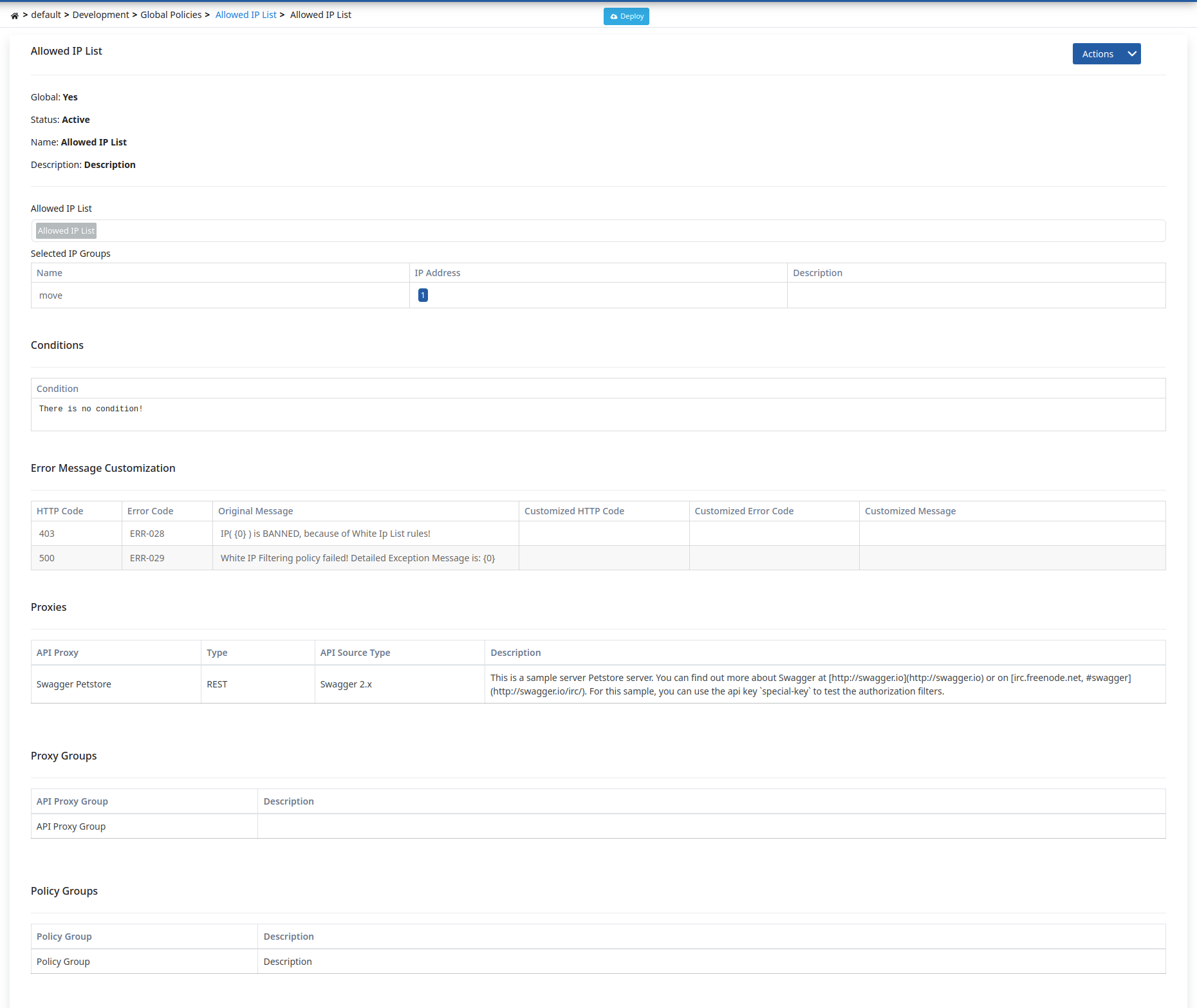
Proxies Using the Policy
The edit screen of every global policy carries a list of the proxies that use it. The list covers both classic API Proxies and AI, MCP, and A2A Gateways, and each row shows:
- API Proxy: The name of the proxy. Clicking the name opens that proxy's edit screen; AI, MCP, and A2A Gateways open on their own screens.
- Type: The kind of proxy.
- Project: The project the proxy belongs to.
- Usage Point: Which flow the policy is attached to inside the proxy — request, response, or error. If the policy is attached to a single method, that method's name is shown as well; when no method name is shown, the policy runs for every method of the proxy. If the same policy is attached at more than one point, all of them are listed.
- Environment: The environments the proxy is currently deployed to. If the proxy is not deployed anywhere, the row reads "Not deployed".
- Description: The description of the proxy.
Only proxies in projects you are authorized for appear in the list.
When you try to delete a global policy that is used by any proxy in this list, the deletion is blocked and the proxies using it are shown to you.
Editing a Global Policy From Inside a Proxy
A global policy is not copied into the proxy that uses it; the proxy is bound to the central definition. Editing the policy from two different places therefore has two different outcomes:
- If you edit it from the Global Policies screen, the change is made in the central definition and affects every proxy using the policy. If the policy is in use, a confirmation dialog opens before saving and lists the proxies using it.
- If you edit it from a proxy's Development tab, the central definition is preserved. A warning dialog opens when you save and asks you to type the policy name to continue. Once you confirm, the policy becomes a copy that belongs to that proxy only and its link to the central definition is broken: later central updates no longer reach this proxy, and the changes you make here do not affect any other proxy.
This behavior applies to AI, MCP, and A2A Gateway policies exactly as it does to classic API Proxies.
The warning dialog appears only when you edit a global policy from inside a proxy. Policies that belong to a single proxy have no such warning; they concern that proxy only.
Global Policies Deploy Operation
When any change is made to a global policy, the status of API Proxies and API Proxy Groups using this policy changes to "Redeploy Required". Instead of deploying them one by one, the deploy feature on this page enables bulk deployment of all API Proxies and API Proxy Groups using this policy to a specific working environment (environment).
When the deploy operation is initiated, a confirmation dialog opens. This dialog contains the following information and options:
- Policy/Settings Group Name: The name of the global policy to be deployed is displayed. This information is shown in the confirmation mechanism since it is a bulk operation.
- API Proxy and API Proxy Group Selection: You can select whether the deploy operation will be applied to API Proxies, API Proxy Groups, or both. Both options can be selected.
- Filter Option: You can select one of the following options to filter which API Proxies and API Proxy Groups will be deployed:
- All: All API Proxies and API Proxy Groups using this global policy are deployed.
- Only deployed ones: Only API Proxies and API Proxy Groups that are deployed in the selected environment and do not require redeploy are deployed.
- Only deployed and redeploy required ones: Only API Proxies and API Proxy Groups that are deployed in the selected environment and require redeploy are deployed.
- Deployable Object Counts: The number of API Proxies and API Proxy Groups to be deployed is displayed according to the selected filter option.
When the filter option is changed, the deployable object counts are automatically updated. When the deploy operation is initiated, the API Proxies and API Proxy Groups determined according to the selected filter option are deployed.
When the deploy operation is completed, a results screen named Deployment Results showing the result of the deploy operation is presented to the user.
Global Policies Deploy detail is shown in the following image:
Globalizing Local Policy
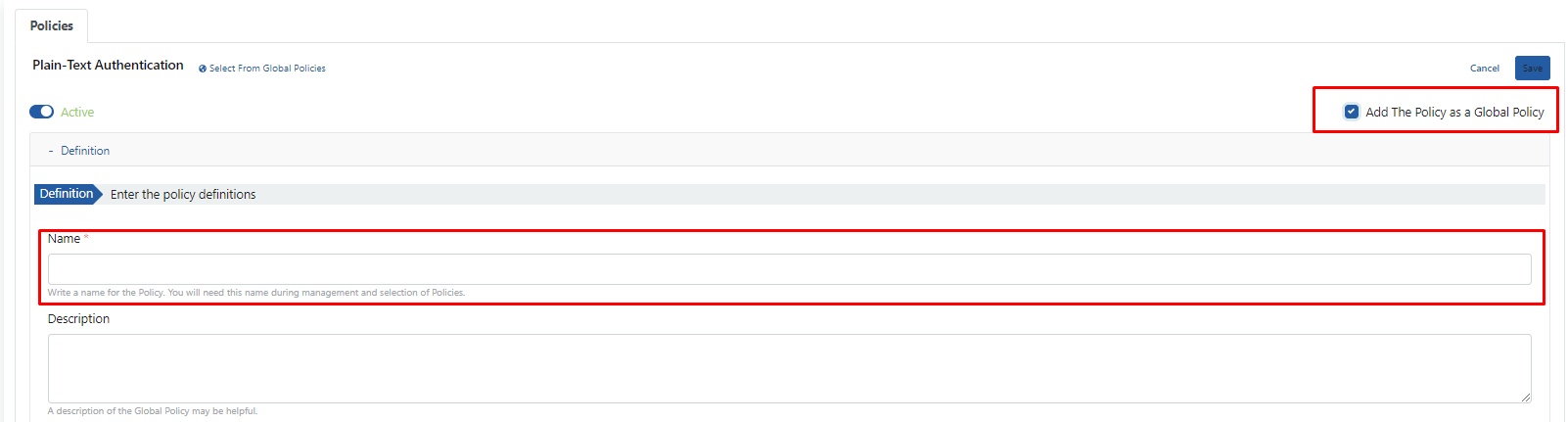
While in the Development tab of an API Proxy, you can make any policy you create a global policy by pressing the "Add The Policy As a Global Policy" button in the upper right area and entering a name in the "Name" field that opens.
The settings for converting a policy to global form through a Plain-Text Authentication policy set locally are shown in the following image:
For detailed policy creation operations, see: Policies