Application Promote
What Is It For?
- Ties applications to a path where they are validated on Test before Prod
- Separates TEST and PROD credentials so production keys are not created too early
- Gives approvers context via technical contact, expected traffic, egress IPs, and required documents
- Manages the lifecycle of promoted apps safely with suspend and deletion requests
- Manages product access through the app with a subscription wizard and plan approval
Who Uses It?
- Developers (Owner/Developer): To create apps, subscribe, and request Prod promotion
- Portal / platform administrators: To configure Prod Promotion, document templates, and approvals
- Security / operations: To verify documents and network requirements before Prod access
Access
- Developer Portal: My Apps → application detail (Configuration, Traffic & Usage)
- Manager setting: Portal → Settings → Portal → Prod Promotion
- Related environment URLs: under Features / API Environments, Production API base URL and Sandbox API base URL (address shown to consumers; does not change gateway routing)
Why Promote Exists
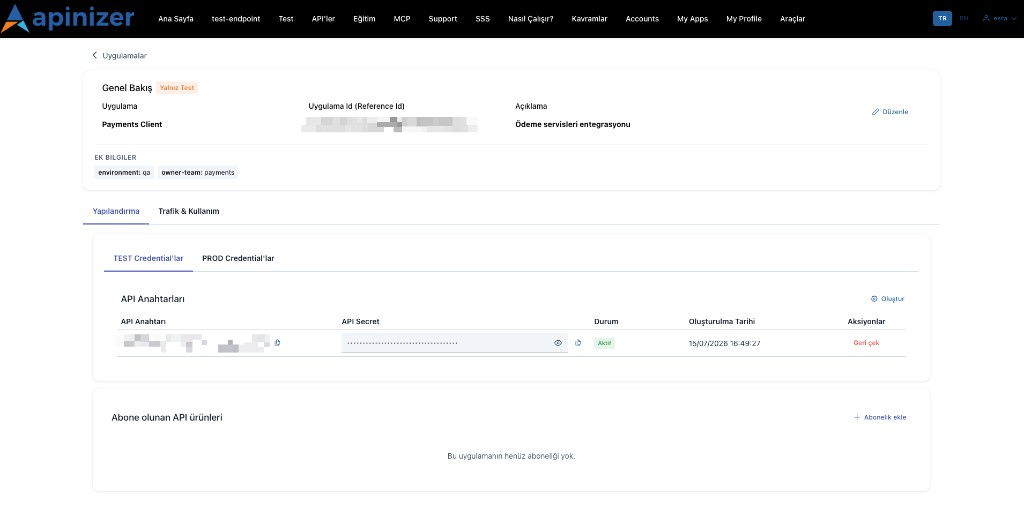
Apps created on the portal start as Test only, authenticating test traffic with the application's own typed API Client — created automatically together with the app, see API Clients below. Production keys are read from a separate prod management connection only after an approved promote, so test keys are not used for production traffic.
Application promotion state
| State | Meaning |
|---|---|
| Test only | Test only; no PROD credentials yet |
| Awaiting prod approval | Promote requested; waiting for approval |
| Prod active | Approved; PROD credentials available |
Manager — Prod Promotion Configuration
| Field | Purpose |
|---|---|
Enable Prod Promotion (enablePromotion) | Shows/hides Prod Promotion configuration fields (connection, documents) in Manager |
| Production instance connection | Separate Apinizer production instance |
| Prod management API URL | Where approved apps/credentials are read from |
| Prod management API key | Stored encrypted; never shown again after save (leave blank = do not change) |
| Requested documents | Name, hint, allowed types, Required/Optional document list |
If no documents are defined, approval alone may be enough (with an info note). Reading PROD credentials requires the prod management URL + key connection.
enablePromotion is mapped to the portal as promotionEnabled. The current Developer Portal UI does not hide the Promote button based on this flag, and submitPromote on the backend does not check it either. The flow follows the app promotion state (Test only → Awaiting prod approval → Prod active). When the toggle is off, Manager hides the connection/document form fields.
My Apps — Application Detail
The application detail page is organized as tabs: Overview, API Clients, Subscriptions, and Traffic & Usage (the last one covered separately, below).
Overview
App name, App Id (Reference Id), description, status badge, metadata (secret values masked).
API Clients
Every member of the application's organization can view this tab; Owner and Developer members can also create, rotate, suspend and resume a client — a Viewer can look but not act, and is refused before the request reaches the manager.
- Create a named client. It is usable right away, with one generated secret returned exactly once, in the response to the create call itself.
- Using a client in the test console: the API Specification → Authorize step on an API product page also lists the application's API Clients under Credential (labelled API Client (Client ID / Secret)). Because the portal never stores a secret, the selected client's secret is entered at that moment — paste the value copied at creation, or click Generate new secret to rotate and have it filled in automatically. The secret is kept in memory for that test session only; "Remember this app" does not remember an API Client's secret. If the selected application has neither a legacy key nor an API Client (its first client failed to generate right after the application was created), the Credential step shows Create API Client instead of an empty list: it creates the client the same way the app detail's New API Client does, selects it and fills in its one-time secret so the console can be authorized on the spot. Viewers do not see this button.
- Rotate issues a fresh secret for an existing client — again shown once — while the previous secret keeps authenticating through a grace period, so rotating does not interrupt traffic that is still using the old value. Losing a secret means rotating to a new one; a secret is never shown again after its one-time response.
- Suspend (with an optional reason) stops a client from authenticating without discarding its configuration; Resume restores it.
- What a client can reach: a client created here inherits its application's access — exactly the proxies and API Proxy groups the application's Approved subscriptions (see Subscriptions) grant, never more. Nothing has to be configured for this: the portal records the client with the Owner default authorization mode the moment it is created, so a call signed with it succeeds as soon as the application holds an approved subscription for that API. A Manager operator may still narrow a single client afterwards from Identity → API Clients → client detail → Authorization (to a subset of the application's APIs, or to deny all). A client created by hand in Manager, by contrast, starts as Deny all until an operator decides its reach.
A client can have at most 5 live secret versions at a time. Rotating creates a new one and starts a 24-hour grace period for the version it replaces; an hourly maintenance job withdraws versions whose grace period has expired. If you already have 5 live versions, a further Rotate is refused (the message is translated inline) until one expires — wait for the oldest one to age out, then try again. If the client changed elsewhere while you were rotating it, the request is refused as a conflict and asks you to reload the page.
A secret is visible only in the create/rotate response itself, to whoever — an Owner or Developer member of the application's organization — performed that action; it cannot be viewed again afterwards, from this tab or anywhere else in the portal.
A client created by migrating an application's older, single-key credential carries a Migrated from legacy badge. It keeps the same client ID and the same secret, so anything already integrated against it keeps authenticating without a forced reset — but from this version on, that secret is no longer shown on the Developer Portal at all.
Until an application's credential has gone through this migration, its API Clients tab is empty and a Legacy API Keys block appears instead — the same API Key / API Secret pair as before (masked + show/hide + copy), with Generate and Revoke. Migration — including carrying the existing secret forward, so authentication keeps working without a forced reset — runs automatically the first time the Manager starts on this version, and again on save for a record that only becomes migratable later; there is no screen or button for it. See Legacy Records: Automatic Migration. Once it has run for an application, the migrated client appears above with the Migrated from legacy badge, and the Legacy API Keys block disappears.
An application created from this version on never shows this block: its first typed client already exists from the moment the application itself is created (see Create Application and Subscription below), so there is no legacy credential left to migrate. The block remains only for an application created before this version whose credential has not yet gone through the migration above.
Credential metadata (under legacy API Key rows, read-only): Key, Value (secrets always masked), Secret flag, Include in JWT, Include in Token Response, JWT Claim Name.
PROD Credentials — read from the connected production instance once an application is promoted — are a separate, unchanged flow:
| Tab | Behavior |
|---|---|
| PROD Credentials | Locked + Promote to Prod while Test only; status while pending; live list + PROD API address when Prod active |
Subscriptions
Product, plan and status for each of the application's subscriptions — see Create Application and Subscription below for adding one, and Application Lifecycle for what each subscription status means. Starting this version, every subscription card also shows, read-only, the effective limit profile currently applied to it and the application's usage against that profile. That profile comes from either the subscribed product's Subscription Plan or an application-specific override — both configured from API Manager, never from this tab. See Limit Plans for the concepts behind it.
Starting this version, the application's currently Approved subscriptions also grant it access directly: the union of every approved subscription's proxies and API Proxy groups is kept as the application's own access, alongside whatever a legacy credential's access list already provides for an application that still has one. Unregistering a subscription, having a request rejected, or deleting the application narrows that union — access to a given target ends the moment no other approved subscription still covers it. Only what this mechanism itself wrote is ever adjusted this way; access placed by hand, or carried over from a migrated credential, is left untouched. Because of it, an application with no legacy credential of its own is no longer given one automatically the first time it subscribes — its typed API Client and this grant already cover what the subscription means.
Secret visibility
Applies to the legacy credential model — Legacy API Keys and PROD Credentials. API Client secret visibility is covered above, under API Clients.
| Data | Owner / Developer | Viewer |
|---|---|---|
| Legacy API Key | Visible + copy | No secret access |
| Legacy API Secret | Masked + eye + copy | Must not see |
| App / credential metadata secret | Masked | — |
| Prod management API key (Manager) | Saved; never shown again | — |
Create Application and Subscription
New application is limited by Portal Settings maxAppCount (default 3).
Name*, description, OAuth2 Redirect URI (https://; may be empty for client-credentials)
One or more products + plan selection
Summary; confirming creates the app together with its first typed API Client, named after the app — the client's one-time secret is shown right here, in this same step. Use Promote to Prod on the detail for production.
Neither this wizard nor the quick New Application dialog on the app list mints a legacy UUID API Key (username/password) anymore — both paths now create the app with a typed API Client from the start. That first client is issued by the manager in the same request that creates the application: the application is created together with its client, or not at all — if the client cannot be generated, the application is not saved either and the error is shown (The application could not be created: its first API Client could not be generated). This restores the pre-typed-client guarantee that a portal application is never without a key. The Legacy API Keys block is therefore never shown on a new application; it continues to appear only for applications created before this version whose credential has not yet gone through migration.
Add subscription: Product & Plan → Confirm → Subscribe. For manually approved plans, the subscription activates after admin approval (Approval Requests). Card actions: Change plan, Unregister.
Subscription card statuses: Active (APPROVED) · Waiting for approval · Rejected · Disabled · Unsubscribed.
Promote to Prod Wizard
Stages: Test → Info & Documents → Approval → Prod active
Required context fields:
- Prod technical contact (email)*
- Expected traffic* (
< 1,000/1,000–10,000/> 10,000req/day) - Static egress IPs*
- Documents (required/optional list from Manager)
Review: test verified + terms & rate limits accepted → Send for approval → Awaiting prod approval → after approval Prod active → credentials on PROD Credentials.
Application Lifecycle
| Status | Meaning |
|---|---|
| ACTIVE | Normal use |
| SUSPENDED | Credentials disabled; subscriptions/analytics kept → Resume |
| PENDING_DELETION | Waiting for deletion approval; keys revoked, traffic stops |
| ARCHIVED | Archived |
Promoted apps (PENDING / PROD) cannot be hard-deleted → Suspend or Request deletion. Hard-delete applies only to Test only apps.
Traffic & Usage (application)
The Traffic & Usage tab on the app detail shows KPIs, quota, charts, and API Traffic in application scope. For platform-wide view see Traffic & Usage.
Usage Scenarios
- A partner integration is finished on Test, then Prod approval is requested with a document pack
- After a security incident, a Prod-active app is Suspended
- Expected traffic gives approvers context before moving to a quota-bearing Prod plan
- Viewer members monitor the app but do not see client secrets