General Settings
Access the General Settings screen by following Management → System Settings → General Settings. Click the Apply Changes button to save your changes.
An image containing the General Settings screen is shown below:
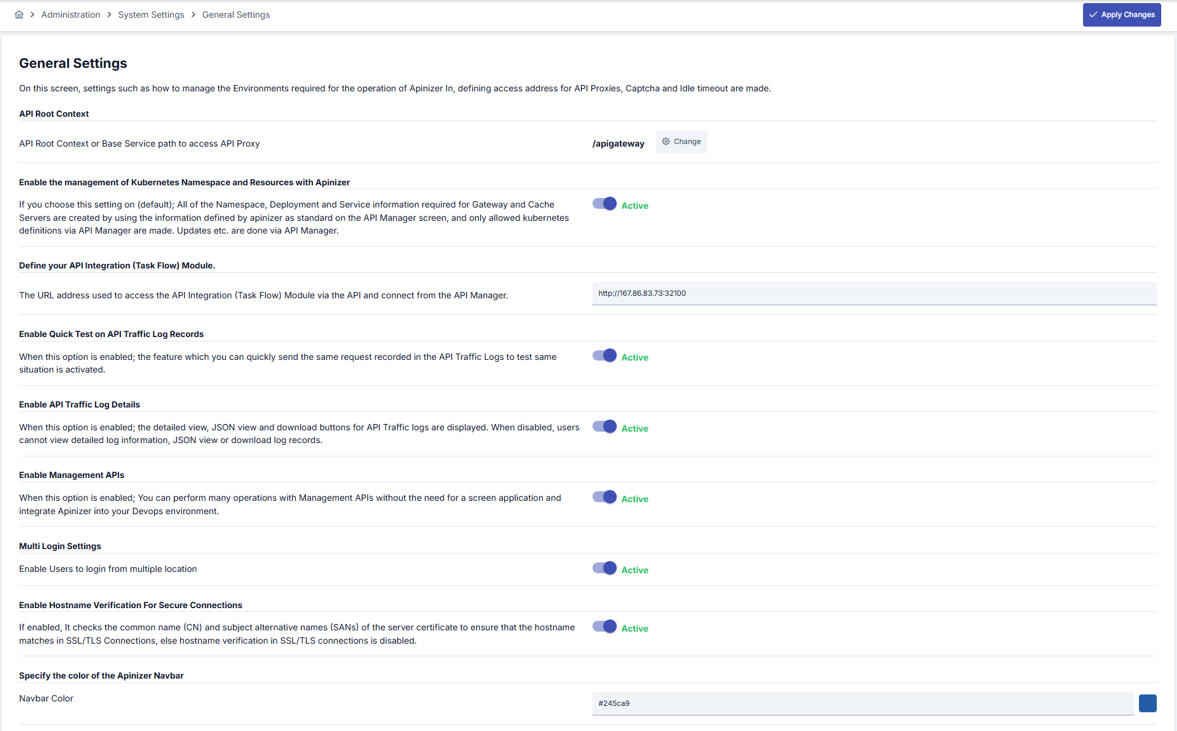
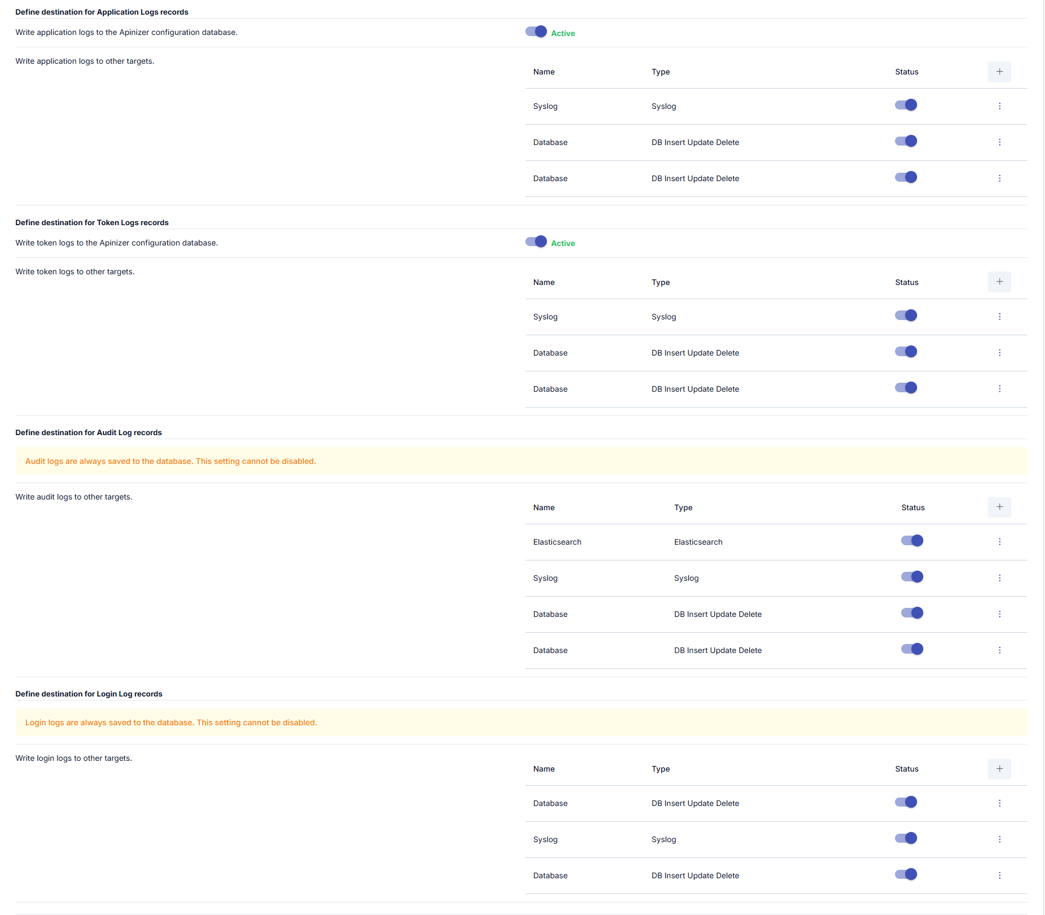
General Settings Configuration
The fields used for General Settings configuration are shown in the table below:
| Field | Description |
|---|---|
| API Root Context | Field where the Root Context required for API Proxy access is entered. Can only be left as /. Default value: apigateway/ |
| Enable the management of Kubernetes Namespace and Resources with Apinizer (Enable the management of Kubernetes Namespace and Resources with Apinizer) | If this setting is on (default value); All Namespace, Deployment and Service information required for Gateway and Cache Servers are created using the information that Apinizer defines as standard through the API Manager screen, and only Kubernetes definitions allowed through API Manager are made. Update etc. operations are performed through API Manager. If this setting is off; All Namespace, Deployment and Service information required for Gateway and Cache Servers are created using the information that Apinizer defines as standard through the API Manager screen, and only Kubernetes definitions allowed through API Manager are made. Update etc. operations are performed through API Manager. |
| Define your API Integration (Task Flow) Module (Define your API Integration (Task Flow) Module) | The URL address used to access the API Integration (Task Flow) Module from API Manager. This field connects the API integration module with API Manager. |
| Enable Quick Test on API Traffic Log Records (Enable Quick Test on API Traffic Log Records) | If this setting is on (default value); The feature that allows you to make requests again with the request message sent by the client on the API Traffic logs page is enabled. |
| Enable API Traffic Log Details (Enable API Traffic Log Details) | If this setting is on (default value); Detailed view, JSON view and download buttons are displayed on the API Traffic logs page. When disabled, users cannot access detailed log information, JSON view or download log records. |
| Enable Management APIs (Enable Management APIs) | When this option is enabled (enabled by default); You can perform many operations without needing the screen application with Management APIs, and integrate Apinizer into your DevOps environment. |
| Multi Login Settings (Multi Login Settings) | This setting is activated to allow users to log in from different locations and different tabs of their browsers. |
| Enable Hostname Verification For Secure Connections (Enable Hostname Verification For Secure Connections) | If enabled, it checks the common name (CN) and subject alternative names (SANs) of the server certificate to ensure that the hostname matches in SSL/TLS Connections, otherwise hostname verification is disabled in SSL/TLS connections. |
| Navbar Color (Navbar Color) | Apinizer navbar color can be determined according to the hex code entered here. This especially facilitates distinguishing environments for those using multiple Apinizer Management Consoles. |
| Audit Log — record Management Console requests | Off by default. When turned on, every write operation (POST, PUT, PATCH, or DELETE) sent to the Management Console screens, the Management APIs, APIops, and the API Portal's management backend is additionally recorded as a Manager Request audit event — its path, HTTP method, outcome, and duration, but never its query string or authentication headers, and never its request body unless the setting below is also on. See Audit Records for details. This switch stays on this page, and is also shown on the Audit row of the SIEM & Log Forwarding page. |
| Audit Log — record request body | Off by default, and has no effect unless the setting above is also on. When turned on, the JSON request body of a Manager Request audit event is additionally captured — limited to the Management Console's own /api endpoints (not APIops, not the API Portal's management backend), capped at 16 KB, with certificate, keystore, key, and license/import/export endpoints always excluded and secret-looking fields removed. See Recording the request body for the full behavior. |
Password Policy
These settings apply only to users whose password Apinizer stores and verifies directly (User Login Type: Database). Users who sign in through an LDAP directory are authenticated there, so this policy does not apply to them.
Every default reproduces the fixed rule Apinizer enforced before this section existed — 8 to 50 characters, drawn from at least 3 of the 4 character types — so an installation that upgrades to this version behaves exactly as before until an administrator turns on a stricter rule.
| Field | Default | Meaning |
|---|---|---|
| Minimum Password Length | 8 | The shortest password a user may set. |
| Maximum Password Length | 50 | The longest password a user may set. |
| Minimum Number of Character Types | 3 | How many of the four character types below (uppercase letter, lowercase letter, digit, special character) a password must contain, independently of which ones are individually required below. |
| Uppercase letter is required | Off | When on, a password must always contain an uppercase letter, regardless of the minimum above. |
| Lowercase letter is required | Off | When on, a password must always contain a lowercase letter, regardless of the minimum above. |
| Digit is required | Off | When on, a password must always contain a digit, regardless of the minimum above. |
| Special character is required | Off | When on, a password must always contain a special character, regardless of the minimum above. |
| Password Validity Period (days) | 0 (never expires) | A password older than this many days must be changed at the next sign-in. 0 disables expiry. |
| Expiry Warning Period (days) | 7 | How many days before expiry a user is warned at sign-in. Only applies when a validity period is set. |
| Password History Size | 0 (disabled) | A user cannot reuse this many of their most recent passwords, counting the one currently in use. 0 disables the check. |
| Force Password Change After Administrator Reset | Off | When on, a user whose password was set by an administrator — at creation or on a later reset — must choose a new one at their next sign-in. Does not apply when an administrator changes their own password. |
Turning on the Password Validity Period does not expire existing users immediately. On upgrade, every existing database user's password age is stamped as of the upgrade itself, so the countdown only starts from there rather than from an unknown date in the past.
See Users for how these rules are enforced when a password is created or changed, and how a required or expired password change is handled at sign-in.
API Client Secret Storage
This section sets the installation-wide default for how a newly issued or rotated API client secret is kept at rest. Verification never depends on it: a secret presented to the gateway is checked against its one-way verifier the same way in both modes. The mode only decides whether a recoverable copy is kept alongside that verifier.
| Mode | Behavior |
|---|---|
| Encrypted (Default) | The secret is kept in a form that can be shown again: a copy encrypted with the platform's own algorithm is always stored, and — when the installation has a recovery key (KEK) configured — an additional KEK-sealed recovery envelope. Revealable with or without a KEK. This is also the only mode that could ever support HTTP Digest authentication for an API client, though Digest support for API clients is not wired in this version regardless of storage mode. |
| Hashed | Only a one-way verifier is stored — nothing that could be turned back into the secret is kept anywhere, even when a recovery key is configured. The secret is shown once, at the moment it is issued or rotated; Reveal is permanently unavailable for a generation stored this way, and it can never support HTTP Digest. |
The mode is fixed on the individual secret generation the moment it is issued or rotated — not on the client as a whole, so different generations of the same client can carry different modes. The person issuing or rotating a secret chooses it directly, on the Client Secrets sub-tab's issue/rotate dialog: a Storage Mode control there is pre-selected to the installation default set here, and can be switched to the other mode for that one generation without changing the default. See Secret Storage Mode for how this reads on that screen.
Changing this default only affects generations issued or rotated after the change. It never re-stores a secret that already exists — a generation created under the previous default keeps whatever mode it was given at the time.
An installation upgraded from a version without this setting reads the default as Encrypted, with no migration step required. Every legacy credential password already stored, and every secret the automatic legacy-record migration carries over from one, is treated the same way: born Encrypted, and revealable through a platform-encrypted copy even on an installation with no recovery key configured.
The current default can be read directly:
GET /api/general-settings/api-client-secret
{
  "defaultStorageMode": "ENCRYPTED"
}
| Field | Description |
|---|---|
defaultStorageMode | ENCRYPTED or HASHED. Applied to a secret generation whose issue/rotate request does not choose a mode of its own. |
The default is changed with the ordinary General Settings save — PUT /api/general-settings — where the value travels in the apiClientSecretSetting field of the request body, exactly as this screen sends it. There is no separate endpoint for this one setting.
Reading the setting requires no particular permission. Changing it — on this screen or through the General Settings update — requires system administrator permission.
Log recipients (application, token, audit and login logs) and the local storage switches have moved to the SIEM & Log Forwarding page. Destinations, per-stream rules, privacy and size policies are managed there, and that page is now the single source for these settings — values sent for them through this screen, the Management APIs, APIops or a configuration import are ignored.
The "Enable logging disabled fields when blocked" and "Enable logging disabled fields on failure" toggles previously located under General Settings have been removed. This behavior is now managed per connector; see Adding Log Connectors.
Settings such as Captcha, session timeout, SOAP sample generation, deployment history and correlation ID are managed from the System Settings and Limits page.