Quota Usage & Alerts
The Quota Usage & Alerts screen is reached from the Identity Management menu and — like Limit Plans — it is listed under the AI Gateway menu group as well on an installation licensed for that module; both entries open the same screen. It can be opened both from the project menu (that project's own consumers only) and from the Admin menu (every project); both menus show the same screen with a different scope.
Both tabs are governed by the Identity permission group: View to read the report and the alert rules, Manage to create, edit or delete an alert rule. The AI Budgets permission group is accepted in place of Identity, so a role holding only AI Budgets → View reaches the screen and both of its tabs — the same OR the Limit Plans screens use. The Admin menu's cross-project scope always requires a system administrator, whichever group the role carries. Two lookups on the Alerts tab belong to other permission groups: the LLM provider catalogue (AI Development → View) and the e-mail connection list (Connections → View). A role that lacks them still opens the screen normally — no error is shown; only those two lists stay empty, so a provider-scoped rule displays the raw provider reference instead of the provider's name and the e-mail connection field in the rule detail stays blank. Adding the relevant View permission to the role makes the names resolve.
Quota Sources
Every row listed on this screen is a counter coming from a different quota mechanism of the platform. The Type column shows which source the counter comes from:
| Type | Source of the Counter |
|---|---|
| Plan | The product/portal subscription quota the consumer is linked to, including a typed Request Rate assignment attributed to a Consumer or an API client migrated from one — it folds into that consumer's existing counters and shows here as Plan rather than as its own type |
| Policy | An API Based Quota policy added on an API Proxy or Proxy Group |
| RLCL | A counter coming from a Rate Limit Control List definition |
| AI Token | An AI Gateway token budget, including a typed AI Token Budget assignment; limit and consumption are shown as token counts. Attribution follows the assignment's own subject: a Consumer or an API client migrated from one is shown as before, while a native API client that never was a Consumer and a portal application now appear as their own rows too |
| AI Cost | An AI Gateway monthly USD budget; limit and consumption are shown as currency (USD) |
- Report
- Alert Definitions
Lists and filters the consumption within active quota windows.
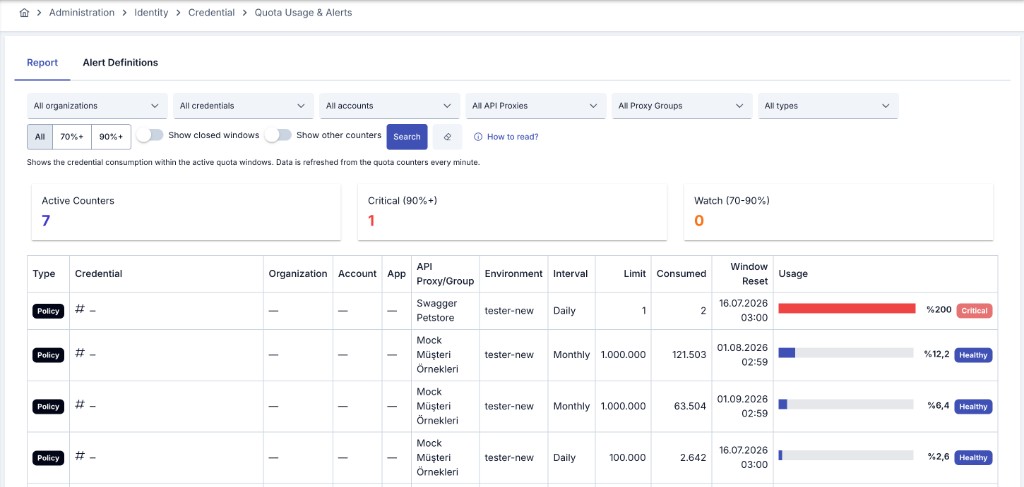
Filters
The report can be filtered by the following criteria:
- Organization, Consumer, Account: Narrow down to a specific organization, consumer or portal account.
- API Proxy / Proxy Group: Narrow down to the API Proxy or Proxy Group the counter is enforced on.
- Type: Narrow down to one or more of the five quota sources above.
- Show closed windows: Also lists expired windows (closed within the last 24 hours); only active windows are shown by default.
- Show other counters: Also lists counters whose format could not be recognized and are therefore classified as Other — this includes a typed Request Rate or AI Token Budget assignment attributed to a subject other than a Consumer or a migrated API client (a project, an organization, an API proxy, the platform, or a rule assignment); hidden by default.
The list can also be narrowed with a quick display filter to All, 70%+ (watch) or 90%+ (critical) usage level.
Summary Cards
Right below the filter fields, three summary cards are shown; they count active windows only (closed windows are not included in these numbers):
| Card | Meaning |
|---|---|
| Active Counters | Number of active quota windows matching the filter |
| Critical (90%+) | Number of active counters with usage at 90% or above |
| Watch (70-90%) | Number of active counters with usage between 70% and 90% |
Table Columns
| Column | Description |
|---|---|
| Type | The quota source of the counter (Plan / Policy / RLCL / AI Token / AI Cost / Other) |
| Consumer | The subject of the counter. If the counter is definitively matched to a consumer (plan counters and policy/RLCL counters whose identity matched a username), the consumer's name is shown. Otherwise, the value the counter is keyed by (IP, header, JWT claim, etc.) is shown masked |
| Organization | The organization the consumer belongs to; stays empty for policy/unknown-type counters |
| Account / App | The account and application linked to the consumer's portal subscription; empty for counters not linked to the portal |
| API Proxy/Group | The API Proxy or Proxy Group the counter is enforced on |
| Environment | The environment the counter is measured in |
| Interval | The length of the quota window: Hourly, Daily or Monthly |
| Limit | The actual request (or, for AI Cost, USD) limit enforced for this window; empty for unlimited counters |
| Consumed | The actual amount consumed so far in this window (live counter) |
| Window Reset | The date and time the current quota window resets (renews) |
| Usage | Consumption as a percentage of the limit; colour-coded healthy below 70%, watch between 70-90%, critical at 90% and above |
| Closed | Badge for an expired window; only shown when "Show closed windows" is enabled |
Report data is refreshed from the quota counters every minute; the consumption of the last few minutes may appear slightly delayed. AI Token and AI Cost rows come from the hourly AI billing aggregation, so they may lag real-time enforcement by up to ~1 hour.
Rules that send an automatic notification when quota consumption meets a defined condition.
Condition Types
| Condition | Triggers When |
|---|---|
| Usage percentage above threshold | Usage reaches a defined percentage (e.g. 80%) |
| Remaining count below threshold | The remaining requests/tokens in the window fall below a defined value |
| Quota exhausted | The window limit is reached (100% usage) |
| Consecutive windows above threshold | Usage exceeds the threshold in a defined number of consecutive windows (to catch persistent/repeated overuse) |
A rule can optionally be restricted to a specific quota interval (Hourly/Daily/Monthly) and specific counter types (Plan/Policy/RLCL/AI Token/AI Cost); if none are selected, the rule covers only the gateway request counters (Plan/Policy/RLCL) — AI Token/AI Cost coverage must always be selected explicitly. When an AI counter type is selected, the rule can also be optionally narrowed to a specific model or provider.
Scope and Recipients
A rule covers all organizations and consumers by default; it can optionally be restricted to specific organizations. The alert e-mail can be sent to one or more of three recipient types:
| Recipient Type | Description |
|---|---|
| Organization | The notification e-mails of the organization the consumer exceeding/approaching the quota belongs to |
| Portal Account | The e-mail of the portal account (for counters linked to the portal) |
| Static Recipients | Fixed e-mail addresses defined within the rule |
The e-mail content is sent with a built-in template; a custom subject and content template can be defined if desired. Additional notification channels (Slack, webhook, etc.) can also be defined alongside the e-mail.
Reminders and Notification History
While the condition persists within the same quota window, at most a defined number of notifications are sent, with at least a defined number of minutes between consecutive notifications. The last 100 notifications sent for each rule can be viewed as history, together with their date, recipients and content.
Relationship Between Quota, RLCL and Throttling
The counters shown on this screen belong to long-window (hourly/daily/monthly) quota mechanisms: the consumer plan, the API Based Quota policy, the hourly/daily/monthly definitions of the Rate Limit Control List, and AI Gateway budgets.
Short-window (second/minute) throttling counters — such as the API Based Throttling policy, or the second/minute definitions of the Rate Limit Control List — are not shown on this screen. These counters exist for instant protection (burst/DDoS prevention) and reset and renew very quickly on every request. The instantaneous state of these short-lived limits can instead be followed through the rate limit information reflected in the response headers of the related policy (remaining count, limit, reset time).
- Use this screen to monitor long-window quota consumption (monthly subscription limit, hourly/daily/monthly RLCL quota, AI budget) and to get alerted when a threshold is approached.
- To see the instantaneous state of short-window rate limiting, check the rate limit information in the response headers of the related API call.
- For historical analytics of AI Gateway usage by person/group/model/provider, see AI Reports; for general API traffic analytics, see the API Traffic & Time Metrics report.
Reading These Counters Through the Management API
Everything this screen shows can also be read programmatically, per subject, through the five read-only endpoints of the Usage Reports API — one each for an organization, a consumer, an application, an API client and an API proxy. Each answers the period's token and cost consumption, the gateway traffic behind it, the live quota windows (limit, consumed, remaining, percentage, reset time) and, for an organization or an application, the breakdown one level below.
Two differences from the screen are worth planning around:
- The budget rows are live, exactly as here: they describe the windows open right now and ignore the requested period. The response states how fresh they are — the counters are synchronized about once a minute.
- A Policy or RLCL counter is answered as a single summary row per window rather than one row per identity, carrying the worst percentage observed. Those counters are keyed by a request identity (an IP address, a header value) that the platform stores encrypted, so it is never published on an automation surface.
A source that cannot be read is reported as a partial result with the unreachable environments named; it is never answered as zero consumption.
Related Pages
Configuring the long-window (hour/day/week/month) total request quota policy.
Configuring the short-window (second/minute) rate limiting policy.
Managing identity-based rate limit definitions.
Configuring AI Gateway token and USD budgets.